Internationalization
Remarkable Pro includes full i18n support, so your users see data in a way that feels natural to them - whether that’s their language, their number/currency formatting, or their local timezone.
You can pass this context into Embeddable (or switch between contexts dynamically) using Client Context.
Remarkable supports three key aspects of localisation:
- Language
- Formatting
- Timezone
Language
Theme namespace: theme.i18n
In Remarkable, you can localize language via theming, including:
- Component input values (titles, axis labels, column headers, etc.)
- Hard-coded UI labels (menus, empty/error states, etc.)
- Database values (dimension values like country names)
Example
//embeddable.theme.ts

const themeProvider = (clientContext: any, parentTheme: Theme) => {

	return defineTheme(parentTheme, {
        i18n: {
            language: clientContext?.language || "en",
            translations: {
                fr: {
                    translation: {
                        welcomeToEmbeddable: "Bienvenue chez Embeddable",
                    },
                },
                en: {
                    translation: {
                        welcomeToEmbeddable: "Welcome to Embeddable",
                    },
                },
            },
        }
    });
};
Things to notice
i18n.languagecontrols which language is currently active. You can set this directly or pass it throughclientContextso it updates dynamically as your user’s language changes.- Add your translations under
i18n.translations, using language codes likeen,fr,de, that map to their own translation objects. - Translations can be hard-coded in your theme (as shown above), or loaded from any external system and passed into Embeddable at runtime using
clientContext.
Example: loading translations externally and passing them into the theme
//embeddable.theme.ts

const themeProvider = (clientContext: any, parentTheme: Theme) => {

    return defineTheme(parentTheme, {
        i18n: {
            language: clientContext.language,
            translations: {
                fr: {
                    translation: clientContext.translations?.fr,
                },
            },
        },
    });

};
This lets you manage all translations in your own system while still using Remarkable’s i18n support.
Translate input values
You can translate the values you pass into components via their inputs in the Builder (e.g. titles, descriptions, axis-labels etc)
To do this, in the builder, provide values as: key|Default Label.
Then, add entries directly under translation.
Example
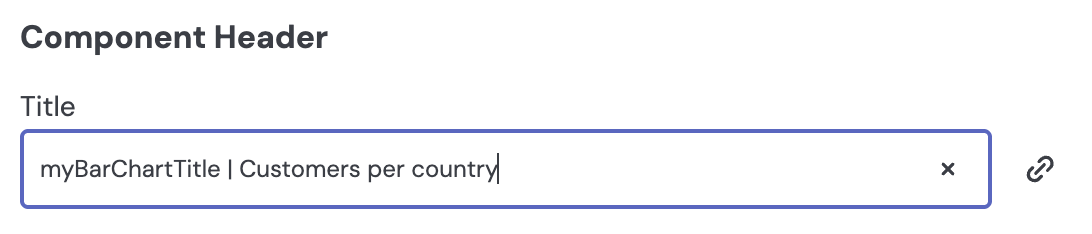
- In the builder, type your input like so:
myBarChartTitle | Customers per country
- Then, in the theme, define your translation:
//theme.i18n
i18n: {
	language: "fr",
    translations: {
        fr: {
            translation: {
                myBarChartTitle: "Clients par pays"
            },
        },
	},
};
Things to notice
- All string-typed inputs and sub-inputs can be translated.
- If a translation is found: uses the translation.
- If missing: uses the part after the | (the default).
- If there’s no |: uses the original value as-is.
Translating hard-coded UI labels
Remarkable includes UI labels that you may want to translate.
You can see the full list of labels in the Remarkable Pro German translation file (opens in a new tab). You can translate these into other languages by providing translations using the format shown above.
The list of hard-coded values fall into two categories:
1. Labels built into Remarkable itself
These are strings used inside components (for example, error messages or empty-state text).
2. Labels defined in your theme
Some labels come from the theme rather than the core components. For example, each export option has a label (e.g. “download as CSV”).
If you extend these options in your theme, you can also localise the new labels you introduce using the approach detailed in the Translate Input Values section, above.
Example
Here’s how you would extend the comparison options:
//New comparison option
{
    value: 'New period',
    label: 'defaults.comparisonPeriodOptions.newPeriod|My new period',
    dateFormat: 'DD MMM YYYY',
    getRange: getPreviousPeriodRange,
},


//Then, within theme.i18n:
translations: {
    fr: {
        translation: {
            defaults: {
                comparisonPeriodOptions: {
                    newPeriod: 'Ma nouvelle période',
                },
            },
        },
    },
    en: {
        translation: {
            defaults: {
                    comparisonPeriodOptions: {
                    newPeriod: 'My new period',
                    },
                },
            },
        },
    },
}The Custom Canvas editor and the drill-down modal have their own labels, which belong to the platform rather than to Remarkable Pro. Translate those under theme.embeddableApp.i18n - see Translating the Custom Canvas interface.
Translate database values
You can translate dimension values returned from the database.
To do this, add translations under translation.dimension using the following key:
data-model-name.dimension-name.value
Example
Imagine you have:
- a data model called customers
- a dimension called country
- returned values like United States and Germany
You would translate the returned values like so:
//theme.i18n
i18n: {
	language: "de",
	translations: {
        de: {
            translation: {
                "dimension": {
                    "customers.country" : "Land" // this is the dimension name itself
                    "customers.country.United States": "Vereinigte Staaten",
                    'customers.country.Germany': 'Deutschland',
                },
            },
        },
	},
};
Things to notice
- At render time, the value is looked up and replaced.
- If not found, the raw database value is shown.
- When interacting with data, everything still works - only the original value is passed to Embeddable or the database to apply filters or other interactions.
Formatting
Theme namespace: theme.formatter
Remarkable Pro formats numbers, currencies, dates and times using the browser’s standard Intl API (opens in a new tab), which is locale-aware. The active locale is controlled by theme.formatter.locale:
- By default, Remarkable uses the browser’s locale (
navigator.language), so formatting automatically matches each user’s own settings. - You can also set the locale explicitly - typically via Client Context - to keep formatting consistent with the rest of your product.
Example
//embeddable.theme.ts

const themeProvider = (clientContext: any, parentTheme: Theme) => {

    return defineTheme(parentTheme, {
        formatter: {
            locale: clientContext?.locale || "en-US",
        },
    });
};
Things to notice
- The locale controls decimal and thousand separators, currency display, and date formats. For example,
1234.56inUSDrenders as$1,234.56withen-US, and as1.234,56 $withde-DE. - The locale is independent of
i18n.language(which controls translations), but you’ll usually want to keep the two consistent. - If the locale you provide isn’t valid, Remarkable falls back to
en-US.
Default date & time formatting
You can also adjust how dates and times are rendered via theme.formatter.defaultDateTimeFormatOptions - an Intl.DateTimeFormatOptions (opens in a new tab) object.
The time dimension’s granularity decides which parts of the date are shown (e.g. only year and month for monthly data); these options decide how each part looks.
Example
//theme.formatter

formatter: {
    locale: 'en-GB',
    defaultDateTimeFormatOptions: {
        ...parentTheme.formatter.defaultDateTimeFormatOptions,
        month: 'long', // e.g. "17 July 2026" instead of "17 Jul 2026"
    },
},
Things to notice
- Number formatting works differently: it’s driven by the locale together with per-field settings from the Builder or data model
meta(decimal places, currency, abbreviations, etc.) - see Formatting. - The theme also exposes
theme.formatter.defaultNumberFormatterOptions(Intl.NumberFormatOptions (opens in a new tab)), but built-in components don’t use it when rendering data - it only applies when calling the theme formatter directly without field-specific options (e.g. from your own custom components).
Time Zone
By default, Remarkable Pro shows dates and times in UTC, but it also supports time zone localization, so your users can see dates and times in their local time zone. All you need to do is pass the user's IANA time zone (opens in a new tab) via Client Context.
Example
// Your front-end code

<em-beddable
  token="${json.token}"
  client-context="${JSON.stringify({ timezone: 'America/New_York' })}"
></em-beddable>
To try out time zones in the Builder, add presets to your client-contexts.cc.yml:
# src/embeddable/presets/client-contexts.cc.yml

- name: New York user
  clientContext:
    timezone: America/New_York

- name: Tokyo user
  clientContext:
    timezone: Asia/Tokyo
Things to notice
- The value must be a valid IANA identifier (e.g.
America/New_York,Europe/Paris,Asia/Tokyo). Invalid values are ignored, and Remarkable falls back to UTC. - No theme configuration is needed - Remarkable Pro picks up
clientContext.timezoneautomatically. - The time zone is applied when data is loaded: time-based data is grouped into that zone's days, weeks and months (e.g. an event at 11pm on 16 July in New York is counted under 16 July, not 17 July UTC), and relative date ranges like
TodayorThis weekresolve to that zone's calendar boundaries. - To wire time zones into your own custom components, pass the time zone to
loadData- see the example in Client Context.