Workspace successfully set up! 🍾🎉
You have successfully:
- created your Embeddable code repository and
- built and pushed your bundle to your workspace.
Access your workspace here: US (opens in a new tab) | EU (opens in a new tab).
Next steps
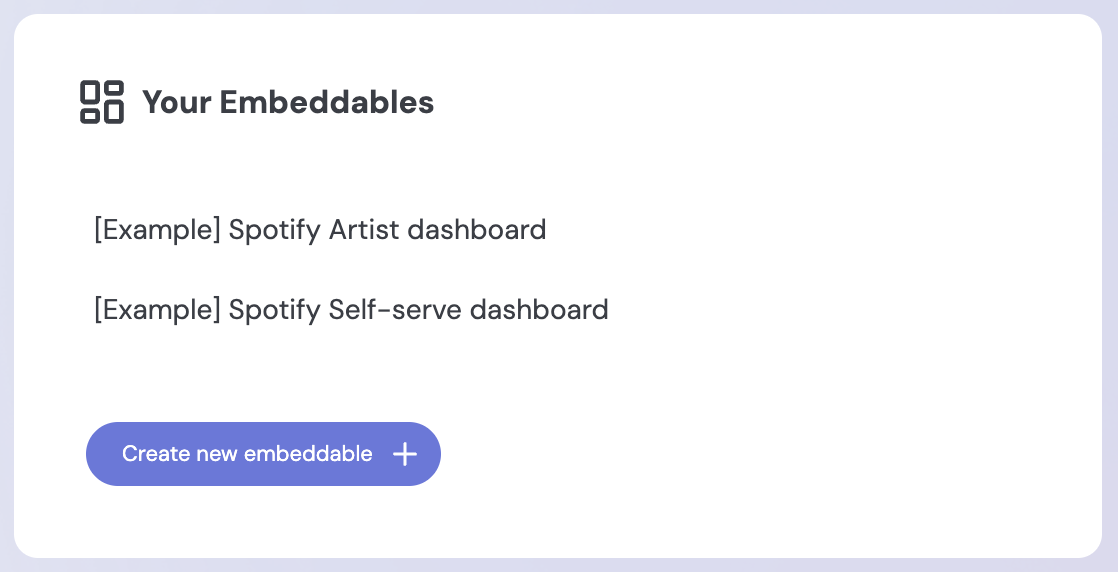
You should now see two [Example] Embeddable dashboards and a Create new embeddable button, which means your workspace is now set up.
As you add models and components to your Embeddable code repository, you'll need to run the embeddable:build and embeddable:push steps again (described here), to see them reflected in your workspace.
Sample Embeddable dashboards
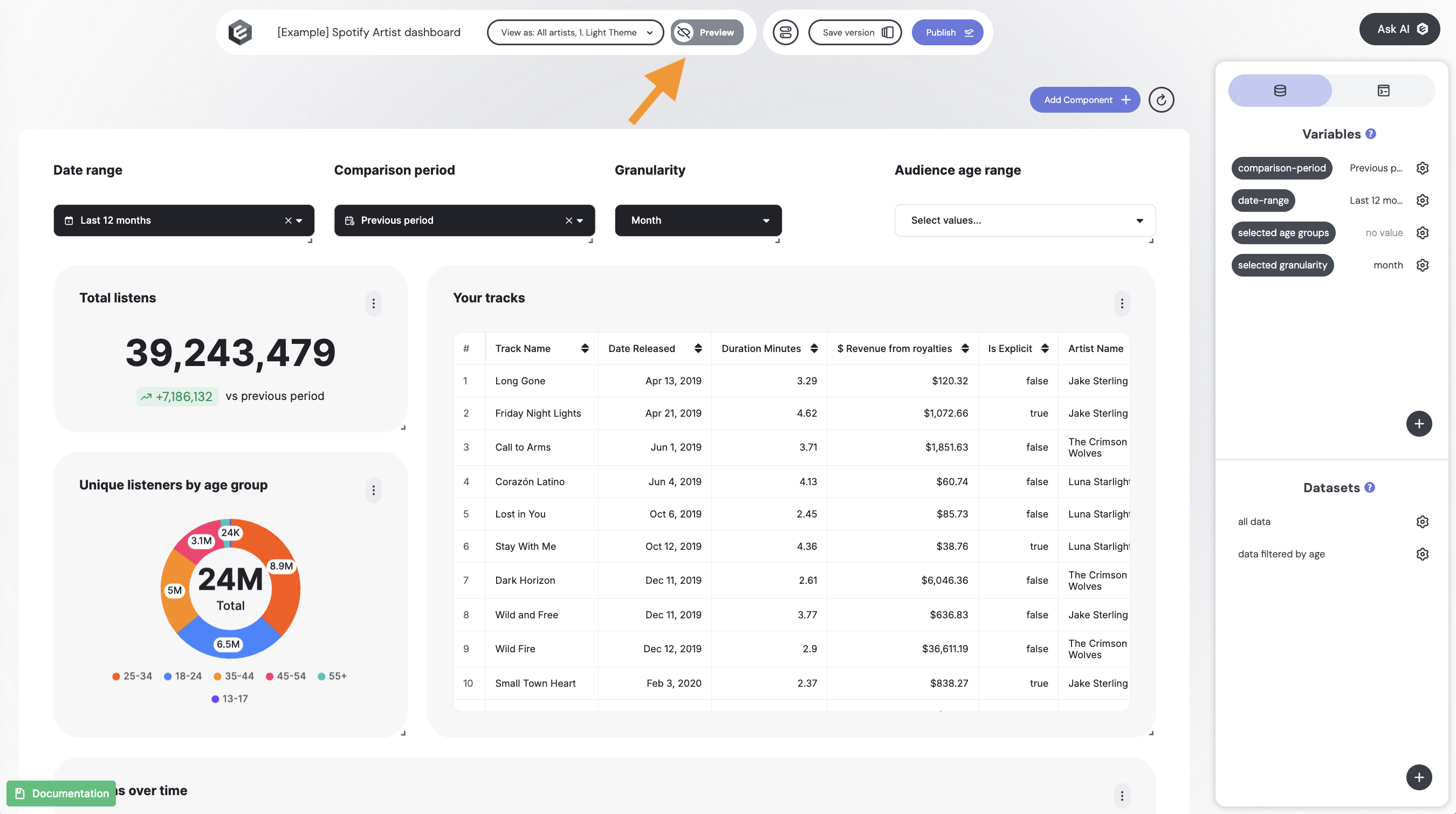
Have a look at the sample dashboards in your workspace. The default view is builder mode (see screenshot below) for building and editing your dashboards (we'll cover building dashboards on the next page).
For now, click "Preview", in the top bar, to switch to preview mode, where you can try interacting with the dashboard:
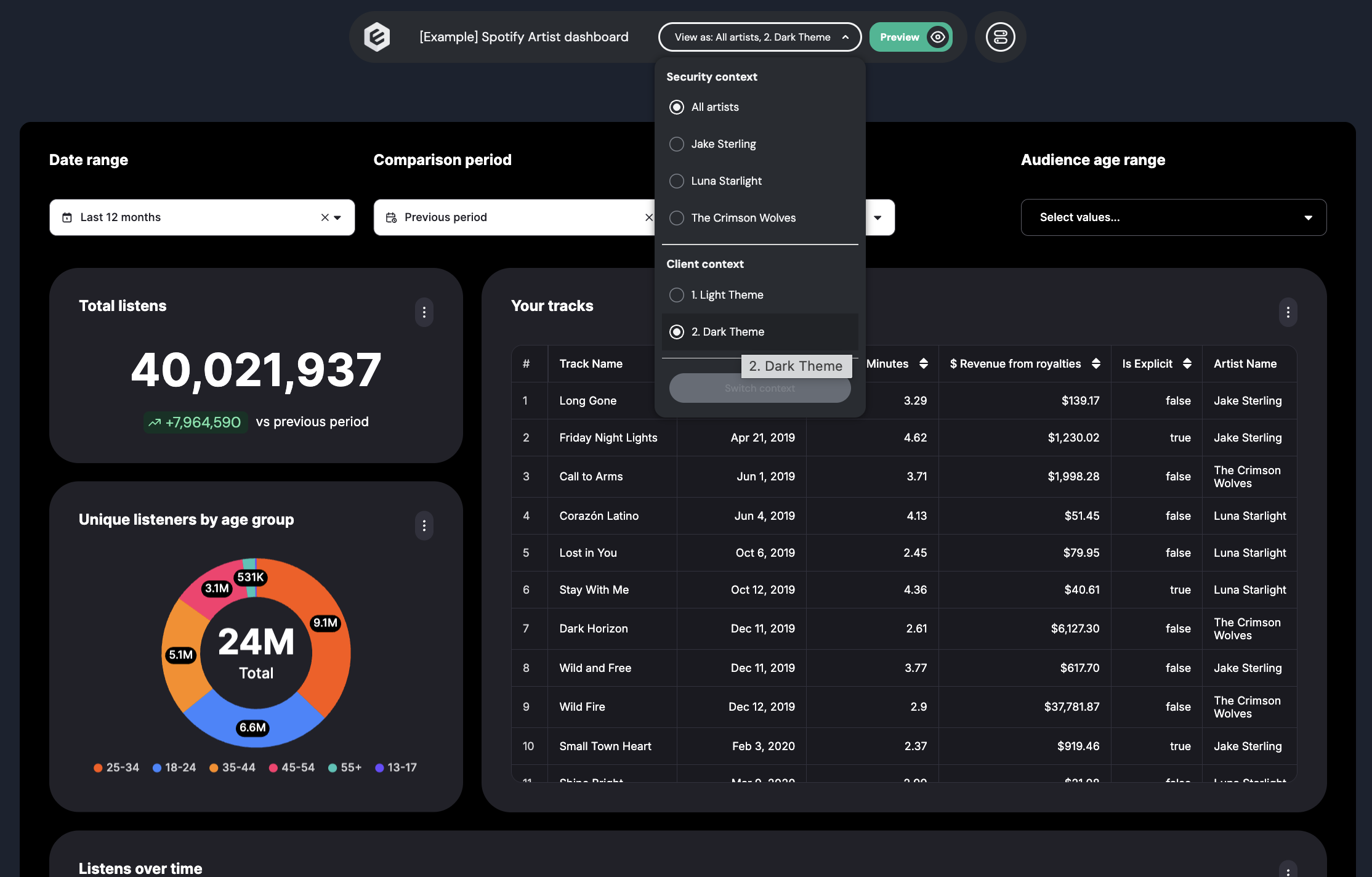
You can use the "View as" dropdown to switch between different themes (in this case, light and dark mode) and to view the dashboard from the perspective of different users (learn more about row-level security here).
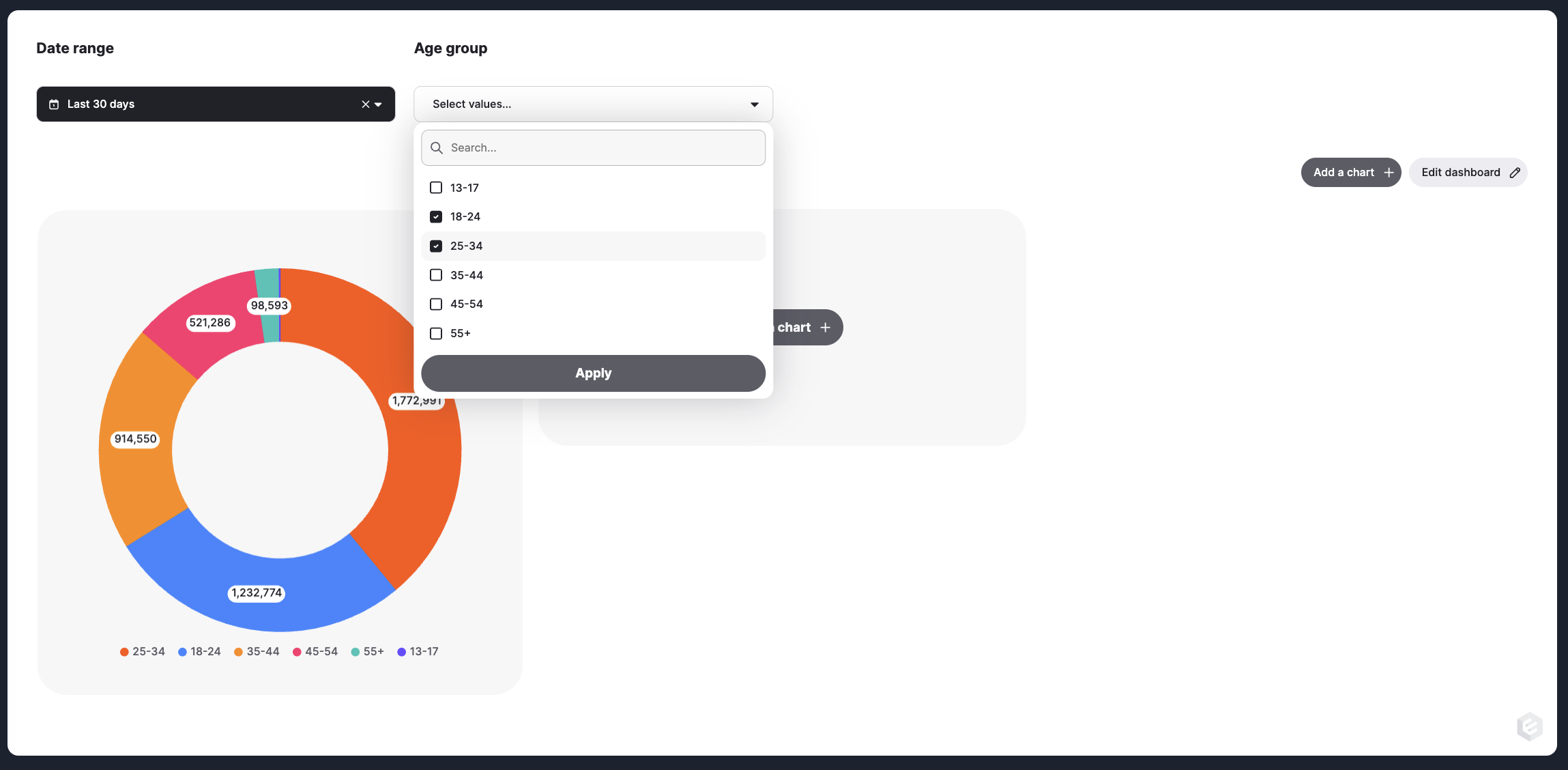
The second example dashboard uses Custom Canvas, which allows your users to build their own dashboards. Again, click Preview to try it out:
Next up, we'll explore builder mode.