Drill-down
Drill-down lets users navigate from summary charts to detailed views by clicking on data points in your dashboards. When a user clicks a chart element, a modal opens showing another Embeddable—automatically filtered to the context of what they clicked.
If you'd like to learn more about Drill-Down before reading further, we've created a five-minute tutorial (video and text) that will walk you through the basics of how it works and how to set it up.
Building as code? Drill-downs are DRILLDOWN events in your .embeddable.yml — the same behaviour, defined in YAML.
Why use drill-down?
- Show underlying data: click a bar in a chart to see the individual rows that make up that total
- Progressive disclosure: navigate from high-level summaries to detailed breakdowns
- Contextual exploration: open filtered dashboards that automatically focus on the clicked data point
How it works
When a user clicks on a data point in a chart with drill-down configured, a modal opens displaying a dependent Embeddable. Any variables in the dependent Embeddable can be automatically set based on the clicked element, creating a seamless filtered experience.
Example:
- User views a dashboard with an Aircraft Deliveries by Program chart
- User clicks on A350 in the chart
- A modal opens showing a detailed breakdown of A350 assembly and delivery data
- If the detail view also has drill-downs configured, users can continue navigating deeper
Setting up drill-down
Below, we'll take you through the steps of setting up your first drill-down:
Step 1: Create a dependent Embeddable
The dependent Embeddable is the dashboard that opens when a user clicks. This must be created first, as it must exist before it can be selected later. Follow these steps to build and test it before wiring up the drill-down.
Create a New Embeddable
All drill-down targets are Embeddable dashboards. Create a new Embeddable for your drill-down target:
- Navigate to your main Workspace page (the top item in the left sidebar)
- Click Create new embeddable
- Choose a name that clearly indicates its purpose (e.g., "A350 Detail View")
Add your chart or dashboard components
Add one or more chart components showing the detailed data you want users to see. Configure data sources and visualizations as needed.
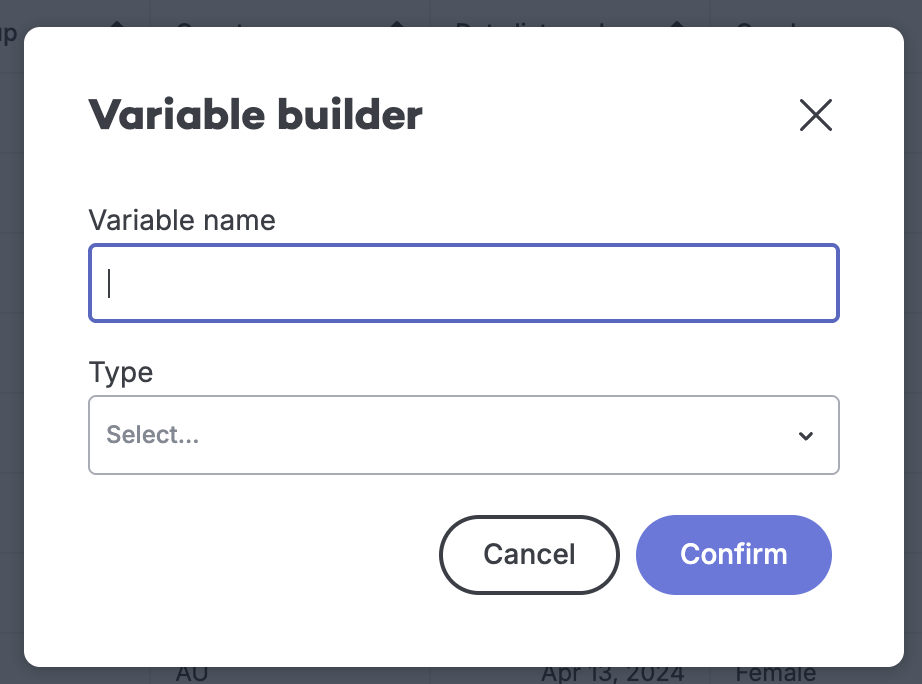
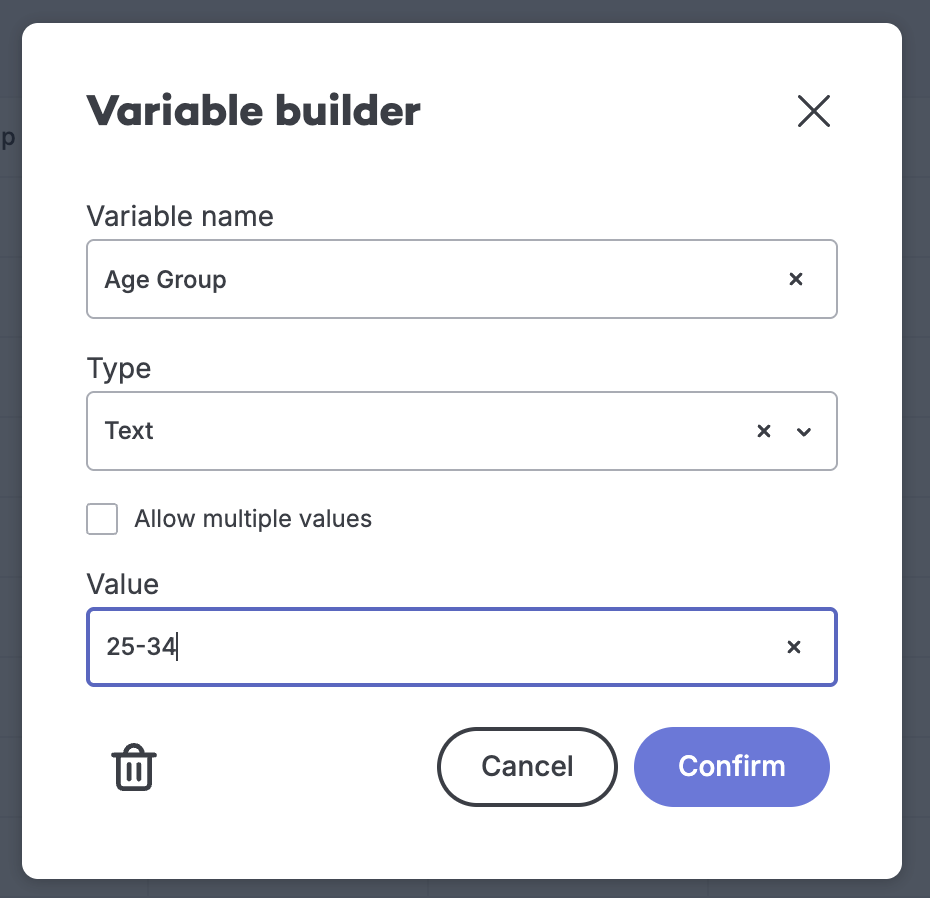
Add a variable for filtering
- Click Variables in the right sidebar
- Click Add variable and configure it
- Give it a default value for testing
Connect the variable to your chart or dataset
Variables can be used on a chart-by-chart basis or to add filters to an entire dataset, which can impact multiple charts. For more information and complete examples, take a look at our variables documentation. Connect your variable to the relevant chart or dataset so that when the variable value changes, the data updates accordingly.
Test the variable
Change the variable value using the variable controls in the builder. Verify your chart updates correctly with different values.
Save and publish your Embeddable
Once filtering works as expected, save and publish. This Embeddable is now ready to use as a drill-down target.
Step 2: Configure drill-down interactions
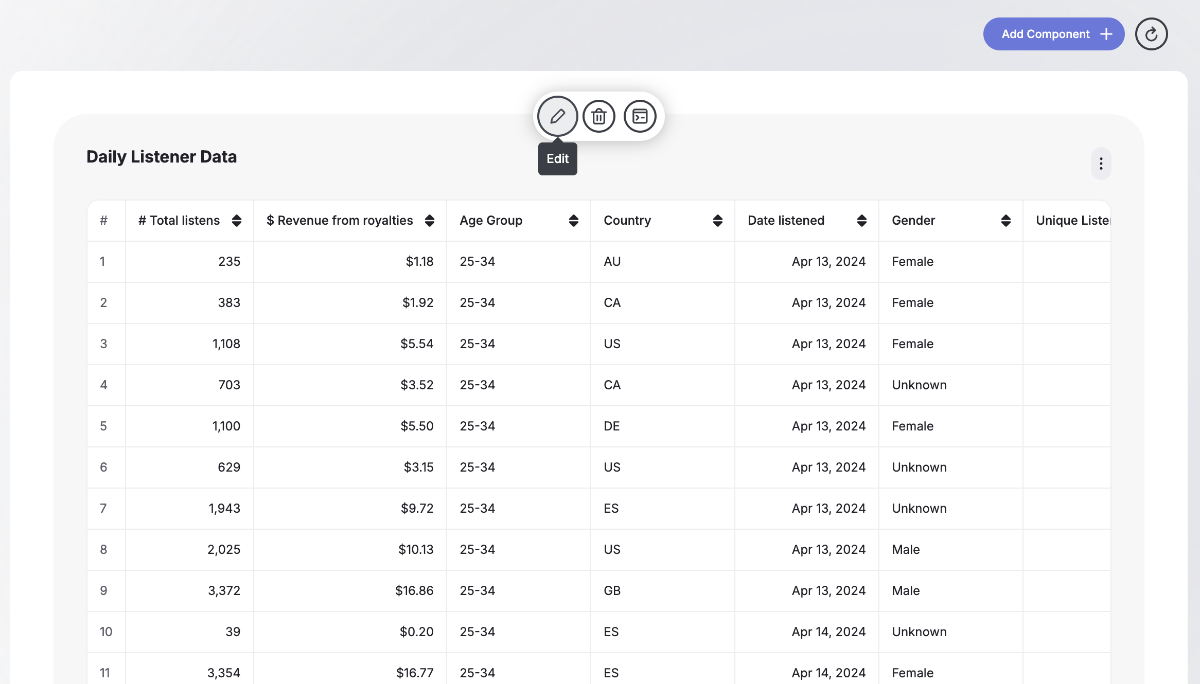
Open the chart editor
In your dashboard, click Edit on the chart where you want to add drill-down.
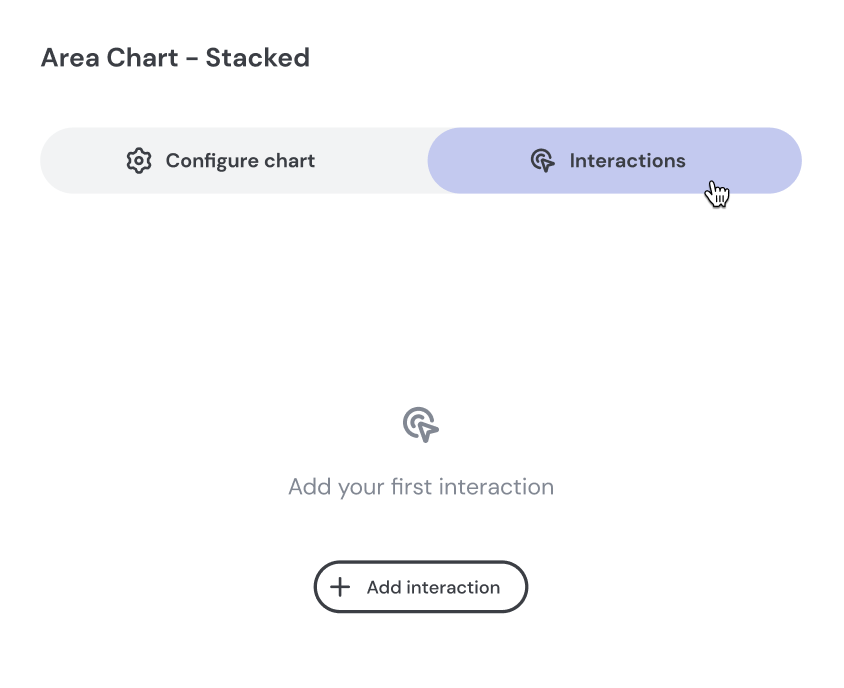
Navigate to the Interactions tab
In the edit modal, click the Interactions tab. If no interactions exist yet, you'll see an "Add your first interaction" prompt.
Add a drill-down interaction
Click Add interaction and select Drill-down as the action type.
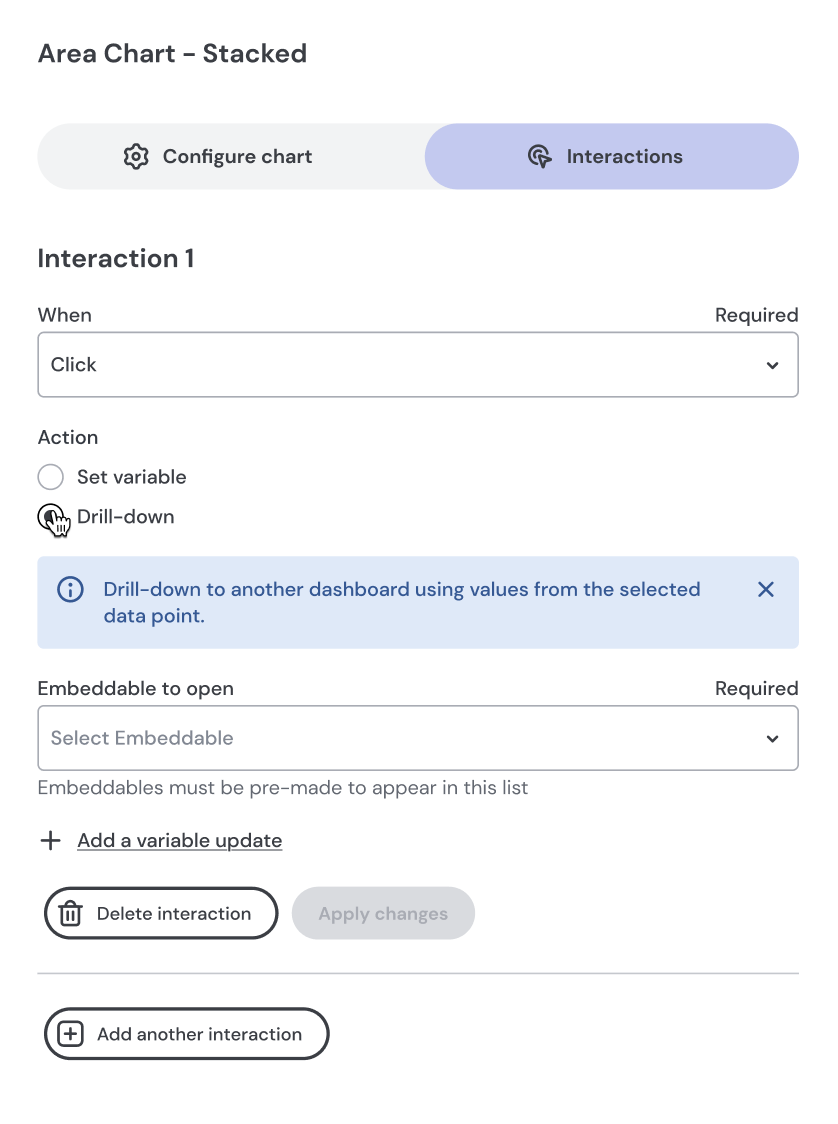
Choose the dependent Embeddable
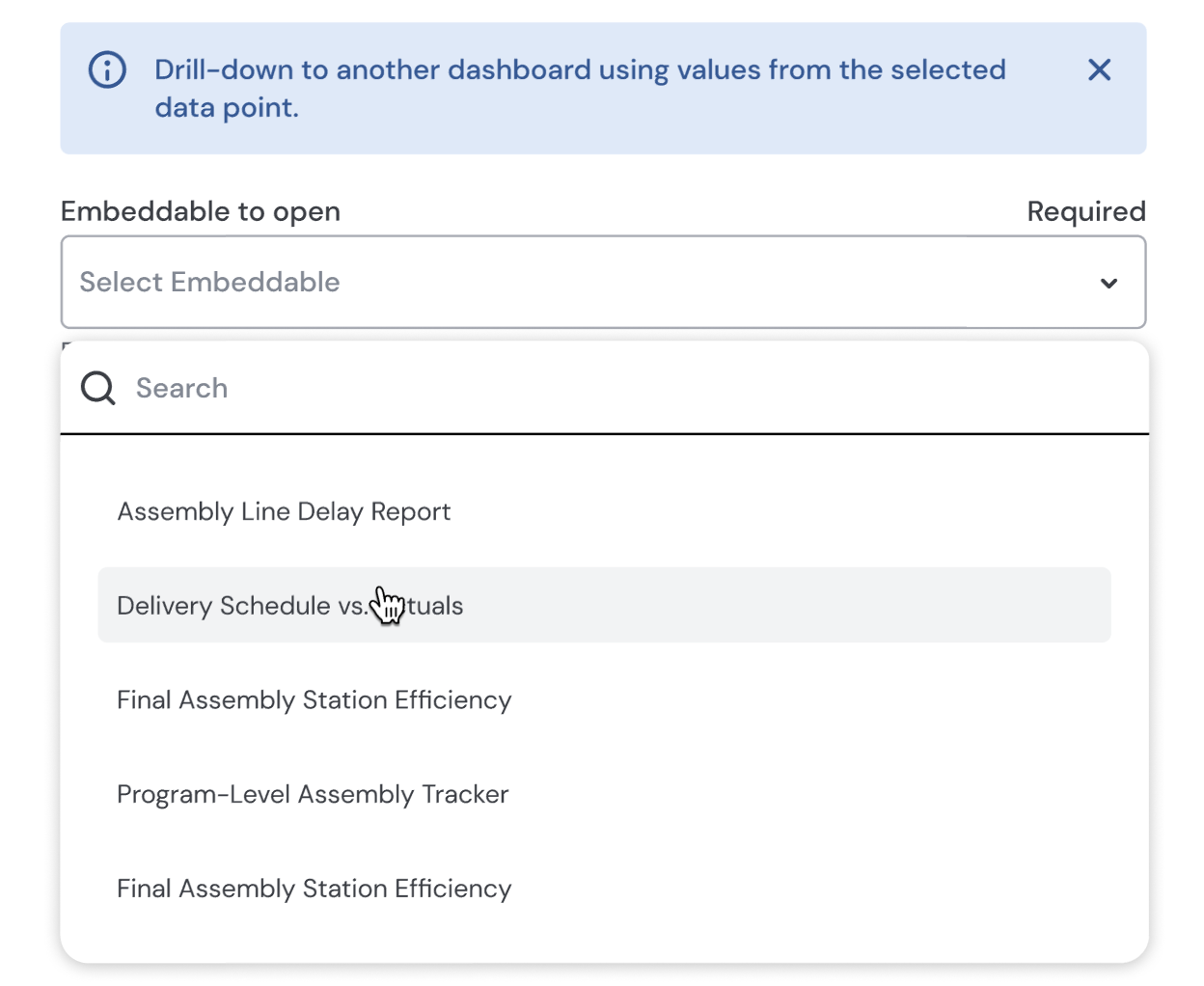
From the Embeddable to open dropdown, select which Embeddable should open when users click. Use the search bar to find it quickly.
You can save at this point if you only need basic navigation (no filtering).
Pass data from the clicked element (optional)
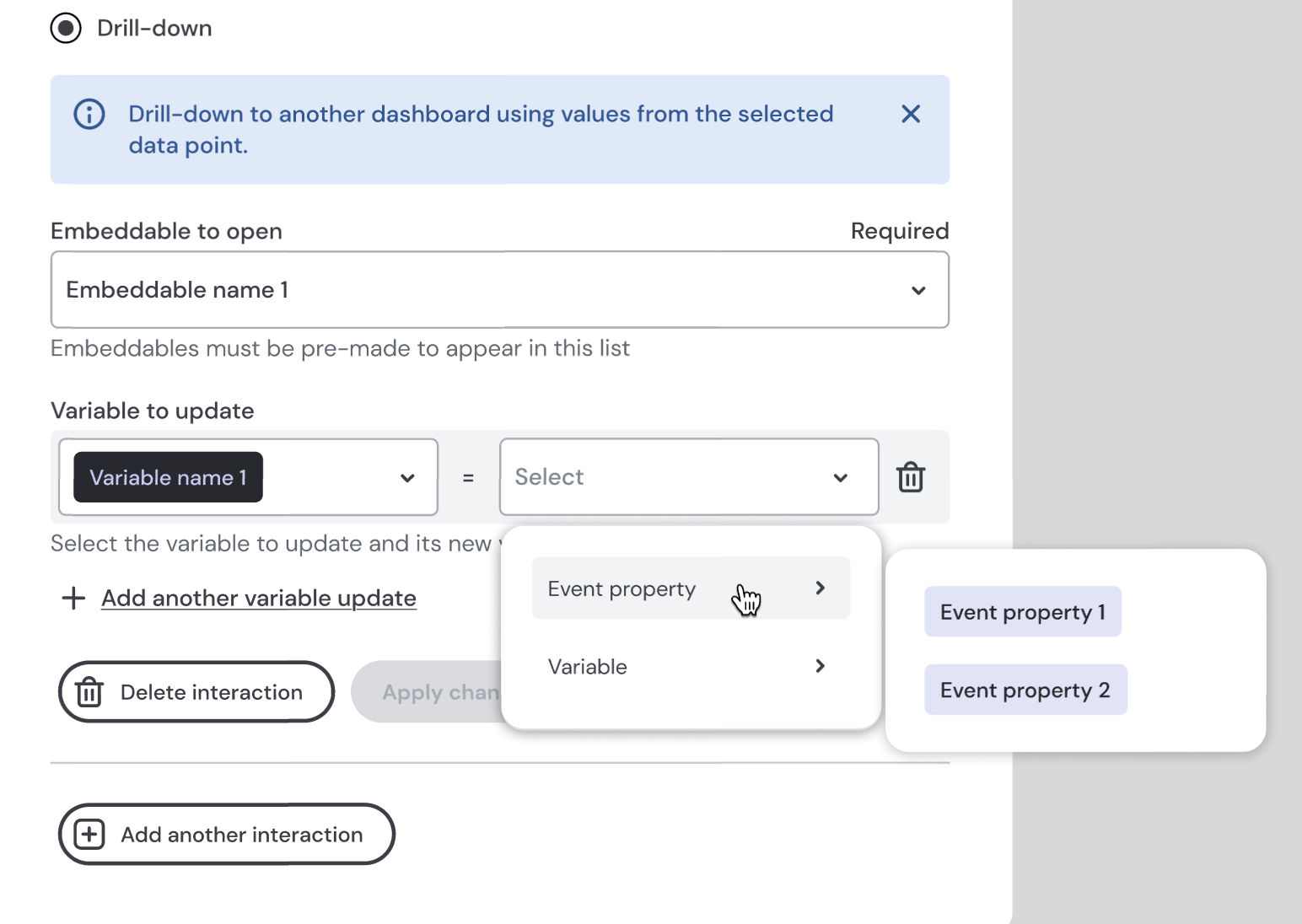
Click Add a variable to update to filter the target Embeddable based on what the user clicked:
- Select which variable in the target Embeddable you want to update
- Choose an event property as the source value—this is the data from the clicked element (e.g., the dimension name or metric value)
- Add multiple variable overrides as needed; each variable can only be overridden once
Save your configuration
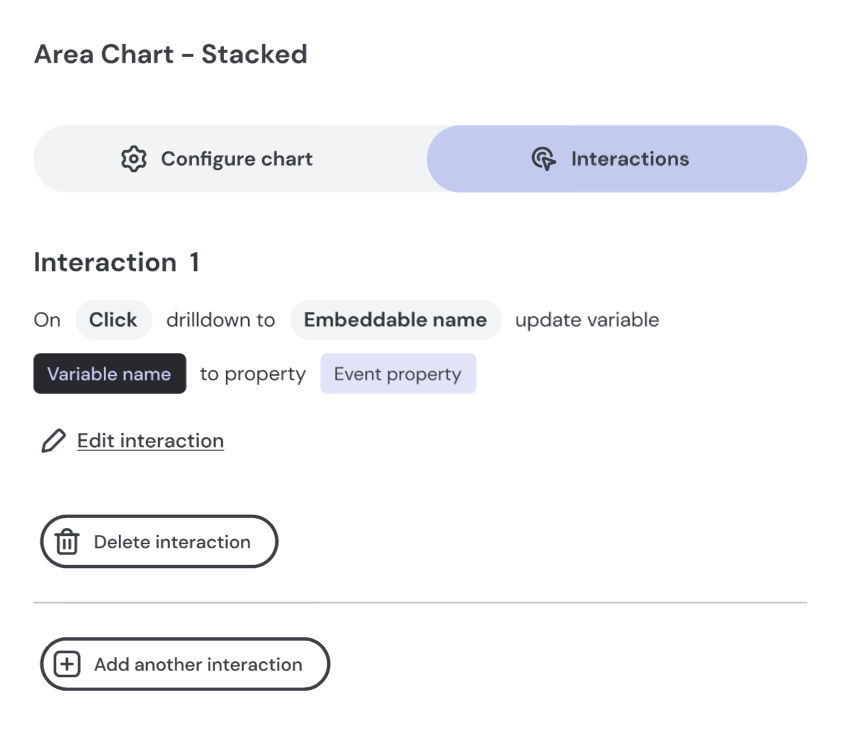
Click Save to apply the interaction. It will collapse to show a summary.
Using variables as source values
In addition to event properties, you can use variables from the current Embeddable as source values. This is useful when you want to pass existing filter state—like a date range—into the drill-down view.
Example: your dashboard has a date range filter. When users drill down, you want the target Embeddable to use the same date range.
Setup: when configuring a variable override, choose Variable as the source type instead of an event property, then select the variable from your current Embeddable.
This lets you combine clicked data (via event properties) with existing dashboard state (via variables) for richer, more contextual drill-down experiences.
You must publish all dependent Embeddables before you will be able to publish the Embeddable with the drill-down interaction.
Use cases
Drill-down to a filtered table
Show users the individual records behind an aggregated metric.
- Create an Embeddable with a table component
- Add a variable for filtering (e.g.,
program) - Configure drill-down on your summary chart, selecting this Embeddable as the target
- Override the
programvariable with the clicked dimension event property
Result: clicking a program in your summary chart (e.g., A350) opens a table filtered to only A350 records.
Drill-down to a filtered dashboard
Navigate from a summary view to a comprehensive filtered dashboard.
- Create an Embeddable with multiple charts and filters
- Add variables for key dimensions (e.g.,
program,date_range) - Configure drill-down on your overview chart
- Override
programwith the clicked event property - Optionally, override
date_rangewith a variable from your current Embeddable to maintain time period context
Result: users explore detailed dashboards automatically filtered to what they clicked.
Multi-level drill-down
Create progressive disclosure with multiple levels of detail.
- Configure drill-down on your summary chart to open a mid-level view
- On the mid-level Embeddable, configure additional drill-down interactions
- Each level can drill down to more specific views
Result: users see breadcrumb navigation allowing them to move through multiple levels of detail within the same modal.
Maintaining dashboard context across drill-downs
Combine event properties and variables for sophisticated filtered experiences.
- The user has applied filters on the main dashboard (e.g., date range, customer segment)
- Configure drill-down to pass both the clicked data point (via event property) and the current filter states (via variables)
Result: the drill-down view shows detail about the clicked item while respecting all filters the user had already applied.
The drill-down modal
When a user clicks a chart element with drill-down configured:
- Breadcrumb navigation shows the drill-down path and lets users navigate back
- Close button lets users exit at any time
- Nested drill-downs open in the same modal, not stacked modals
- Responsive design works on desktop, tablet, and mobile
- Theming respects your Embeddable theming customizations
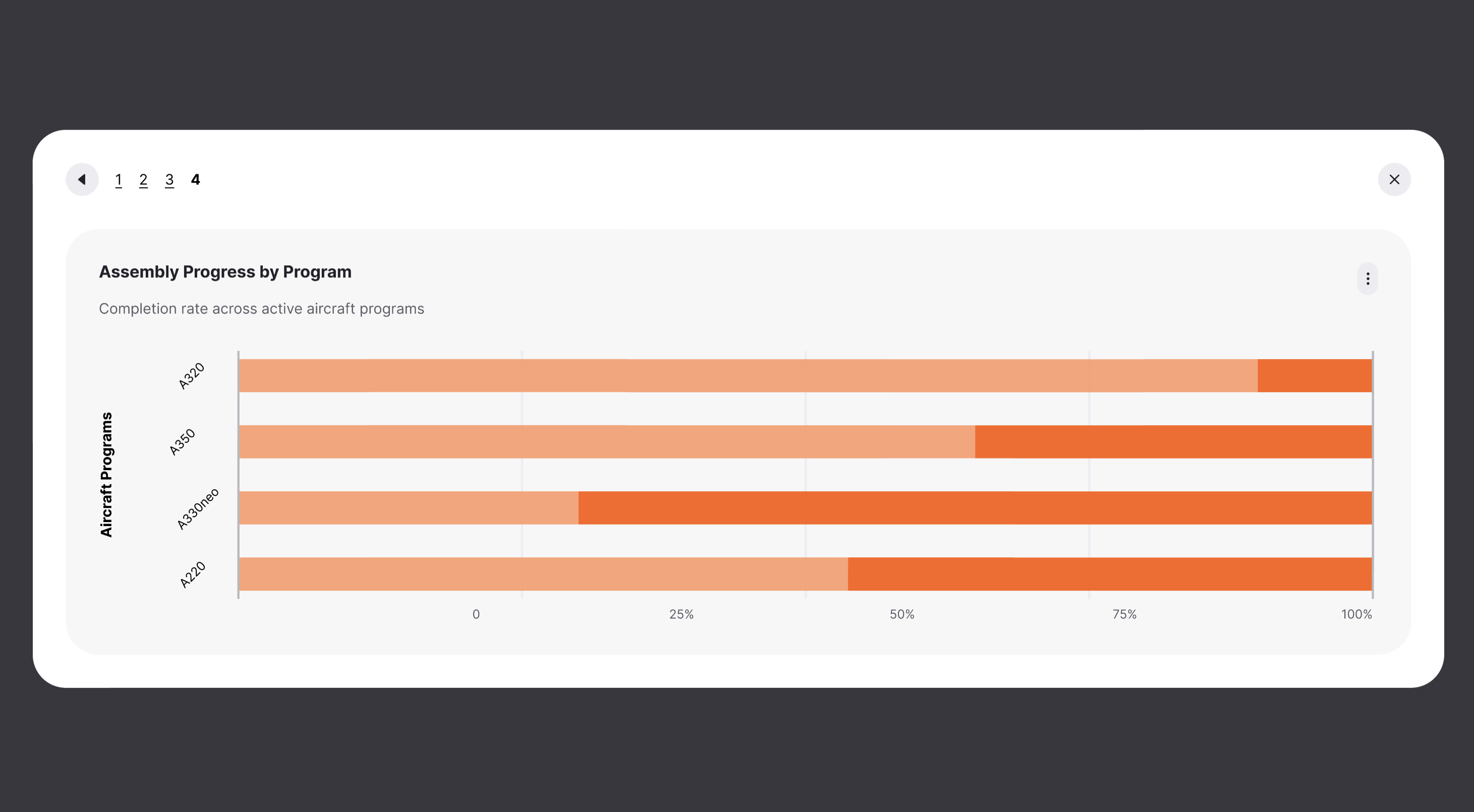
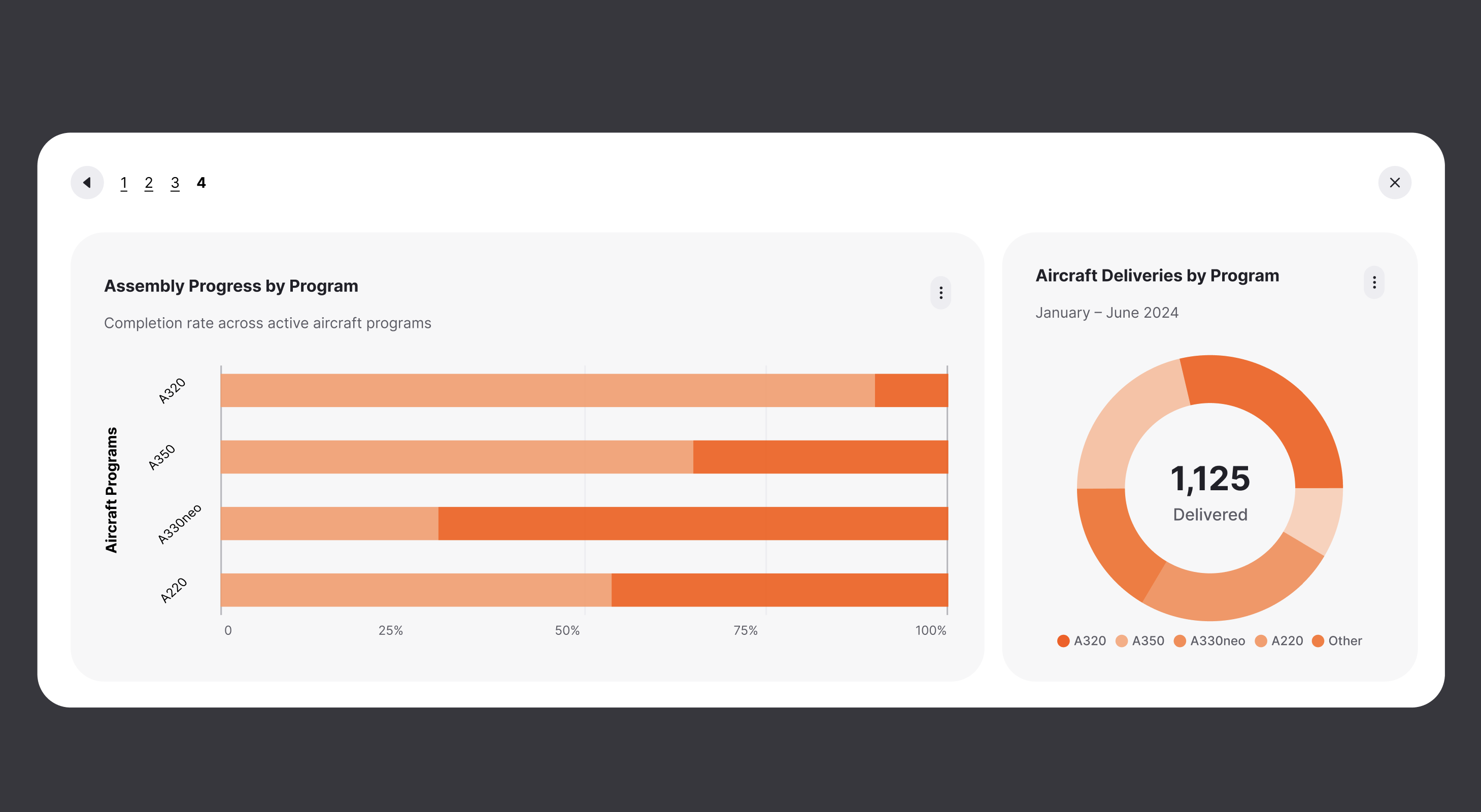
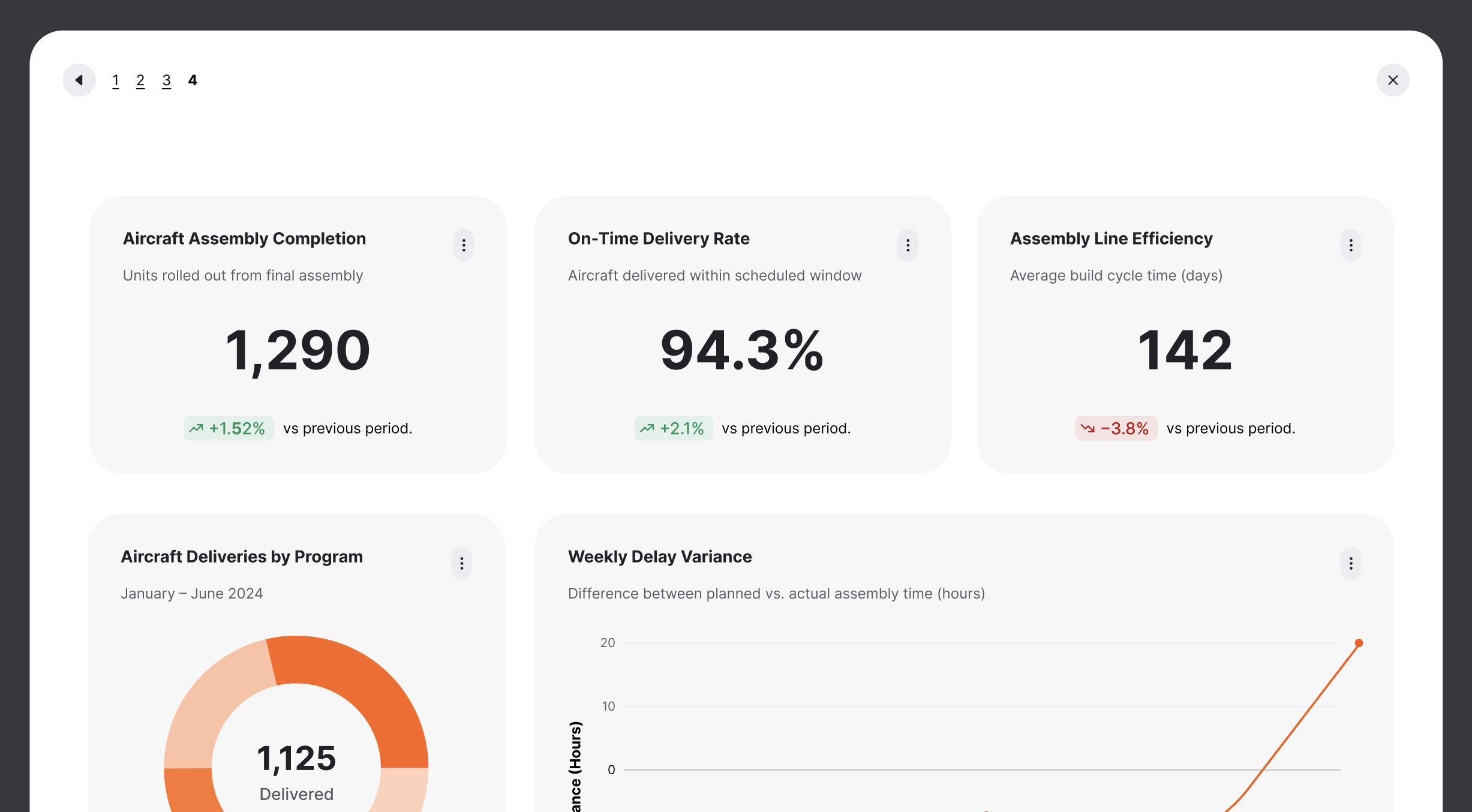
By default, the drill-down modal takes up the full screen on all devices for maximum space to explore. However, you can customize the modal size using CSS variables:
'--em-drilldown-modal-min-height': '100%',
'--em-drilldown-modal-width': '100%',
These variables can be set in your theme.
Multiple interactions on the same chart
You can combine different interaction types on a single chart—multiple drill-down interactions, a mix of drill-down and set variable interactions, or different actions for different events. This gives you flexibility to build sophisticated interactive experiences.
Publishing drill-downs
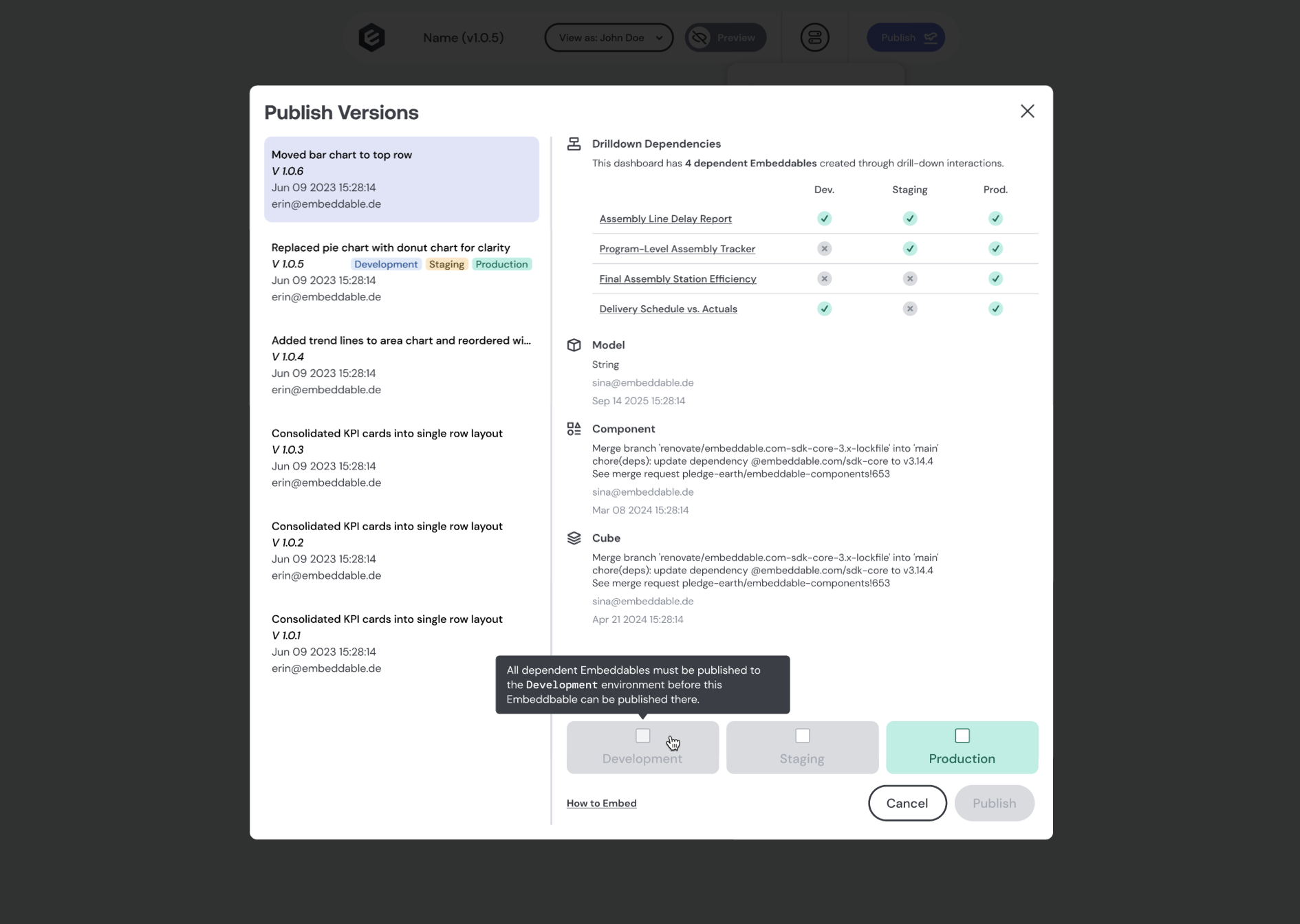
When publishing an Embeddable with drill-down interactions:
- Open the publish modal
- You'll see a list of all dependent drill-down Embeddables
- The modal shows which environments each dependency has been published to
- You can only publish to an environment where all drill-down dependencies have also been published
This ensures users never encounter broken drill-down links in production.
Best practices
Design for context — pass relevant context through variable overrides so users land on filtered, relevant views. Don't make them re-filter after clicking through.
Keep hierarchy shallow — multi-level drill-downs are powerful, but avoid going too deep. Most use cases work well with 2–3 levels maximum.
Start with event properties — in most cases, the data from the clicked element is what you want to pass to the target. Only use variables as sources when you need to preserve broader dashboard state.
Pre-create dependent Embeddables — plan your drill-down structure in advance and create all dependent Embeddables before configuring interactions.
Name Embeddables clearly — descriptive names make them easy to find in the drill-down configuration dropdown.
Test the full flow — always test drill-downs from the end-user perspective to verify variables are passed correctly.
Refresh variable dropdowns — if you create or modify variables while configuring a drill-down, click the variable dropdown to refresh and see your latest changes.
Troubleshooting
My target Embeddable isn't showing in the dropdown
- Ensure the Embeddable has been created and saved
- Click the dropdown again to refresh the list
Variables aren't updating in the drill-down target
- Verify variable names match exactly between your configuration and the dependent Embeddable
- Confirm you're passing the correct event property or variable as the source
- Click the dropdown to refresh and ensure you're seeing the latest variables
The drill-down modal isn't opening
- Ensure the interaction has been saved
- Verify the Embeddable has been published with the drill-down configuration
- Check that all dependent Embeddables have been published to the same environment
I can't publish my Embeddable
- Check the publish modal for unpublished drill-down dependencies
- Publish all dependent Embeddables to your desired environment first
Technical notes
- Drill-downs respect all security settings from your security token, including row-level security
- The
savedVersionfrom your security token determines which version of the dependent Embeddable is rendered - If a dependent Embeddable's published version doesn't match the
savedVersion, users see an error: "Embeddable published with savedVersion 'X' could not be found" - If an overridden variable has been deleted or renamed in the dependent Embeddable, the drill-down continues without error—the override is simply skipped
- All drill-down interactions are part of the same dashboard session for analytics purposes
- Drill-down modals work seamlessly when your Embeddable is embedded in your application